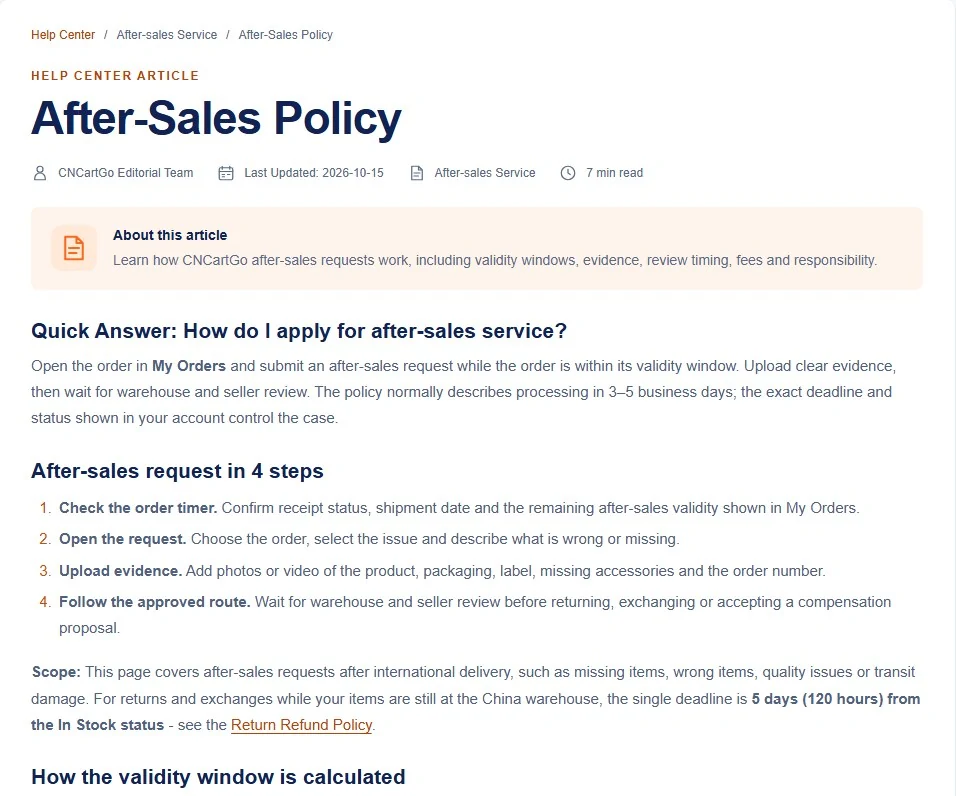
The CNCartGo route in seven stages, sign-up to after-sales
One order, start to finish, with the official screen for each stage. Orange stages are buying-line only, green are forwarding-line only, navy are shared.
Reading the seven stages by colour
Read the stage headings first and find where your order is. If CNCartGo is buying for you, follow every stage. If you bought the goods yourself, stage 2 changes and stage 3 is skipped; the rest is shared. Each stage ends with the deadline or decision that matters most, and links to the page that covers it in depth.
CNCartGo's ten-second clip shows the same order in miniature: paste a link or upload a photo, CNCartGo sources the item, inspects it, packs it and ships it. The stages below slow that down.
Stage 1 · both lines
An account tied to an inbox you read daily
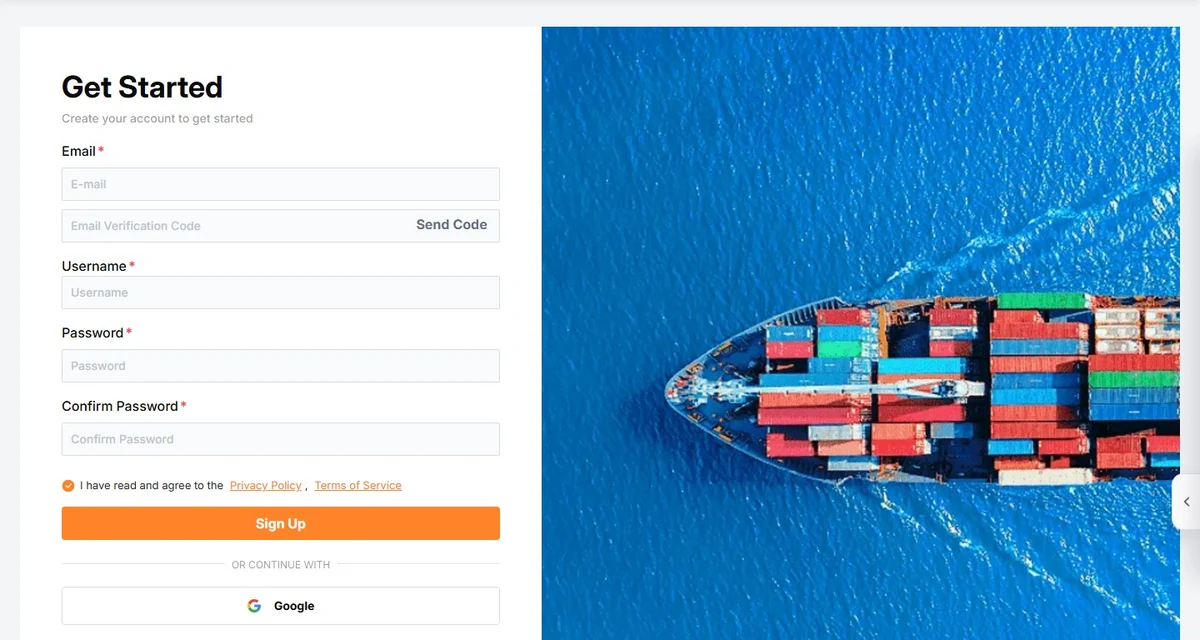
The Sign Up link is in the right corner of the cncartgo.com header. The sign-up form wants an email, a verification code mailed to it, a username and a password, with a tick box for the privacy policy and terms; Google sign-in is offered as an alternative. Use an address you read daily: order confirmations, freight quotes and tracking all arrive there, and it is the recovery route for the account.
Inside the account, set a separate payment password under Security. CNCartGo keeps it apart from the login password, so a stolen login alone cannot spend your wallet balance. Add your delivery address now; you can save several.
Stage 2 · buying line
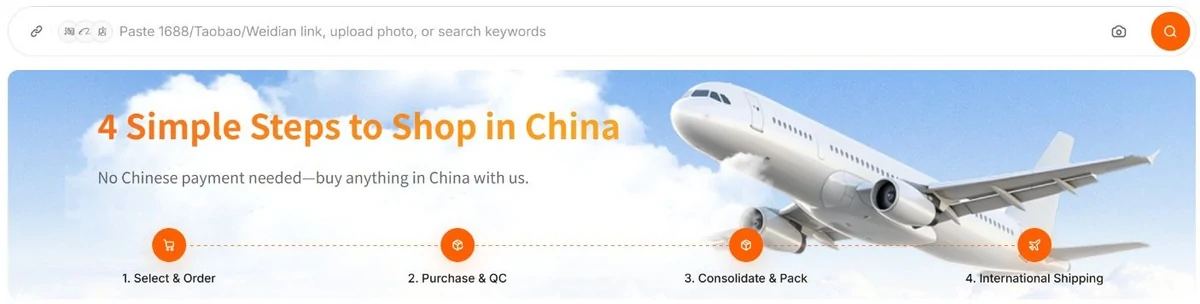
Pin down the listing option, then paste it
Pick a listing from the Spreadsheet shelves or your own search, open it, and note the precise option: colour name, size, model and quantity. Paste the link into CNCartGo's search bar, which also takes a photo or keywords, and choose the same option there. If anything is unclear, CNCartGo asks you to describe the need beside the link and query it before paying.
On the forwarding line this stage happens in the seller's own checkout instead, using the warehouse details from your CNCartGo account; see the forwarding line.
Stage 3 · buying line
Pay the first checkout: goods, China delivery, service fee
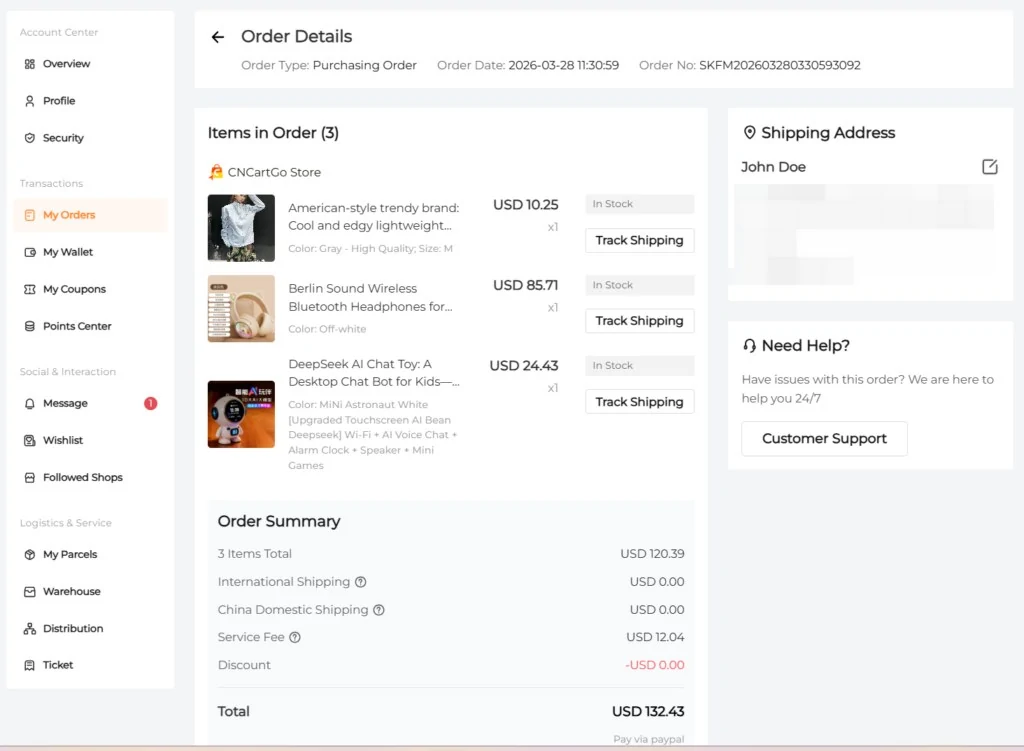
The order summary lists the item total, China domestic shipping, the service fee and any discount. International shipping shows USD 0.00 at this point because it has not been quoted yet. In CNCartGo's example, three items at USD 120.39 carried a service fee of USD 12.04, the 10 per cent tier.
Pay by Stripe (cards and wallets such as Apple Pay, Google Pay, Alipay and WeChat Pay) or wallet balance. Keep the receipt. If the order still shows Unpaid after paying, wait five to ten minutes before contacting support, and never pay twice while the first attempt is unclear.
Stage 4 · shared track
Logged In Stock in Zhongluotan, with 120 hours to change course
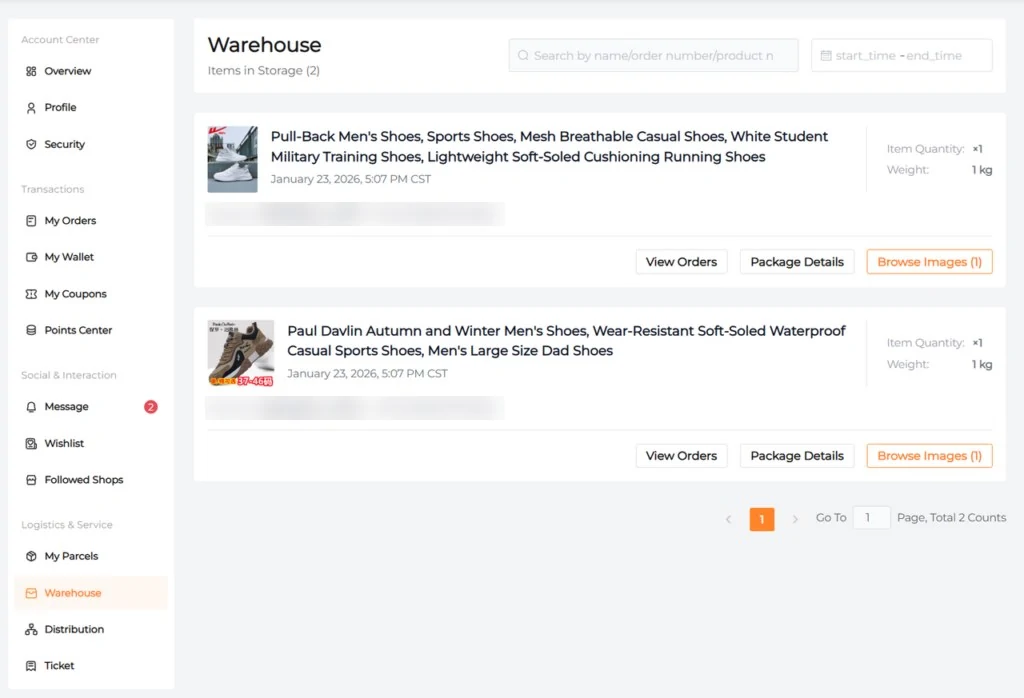
When the seller's parcel reaches Guangzhou the item turns In Stock and its photos appear under Browse Images. Read them in the five-pass order on the warehouse page: count, option, surface, packaging, then what you still need to see. Extra photos cost CNY 5 each.
From In Stock, a return or exchange can be requested for 120 hours, and 100 days of free storage begin from Received.
Stage 5 · shared track
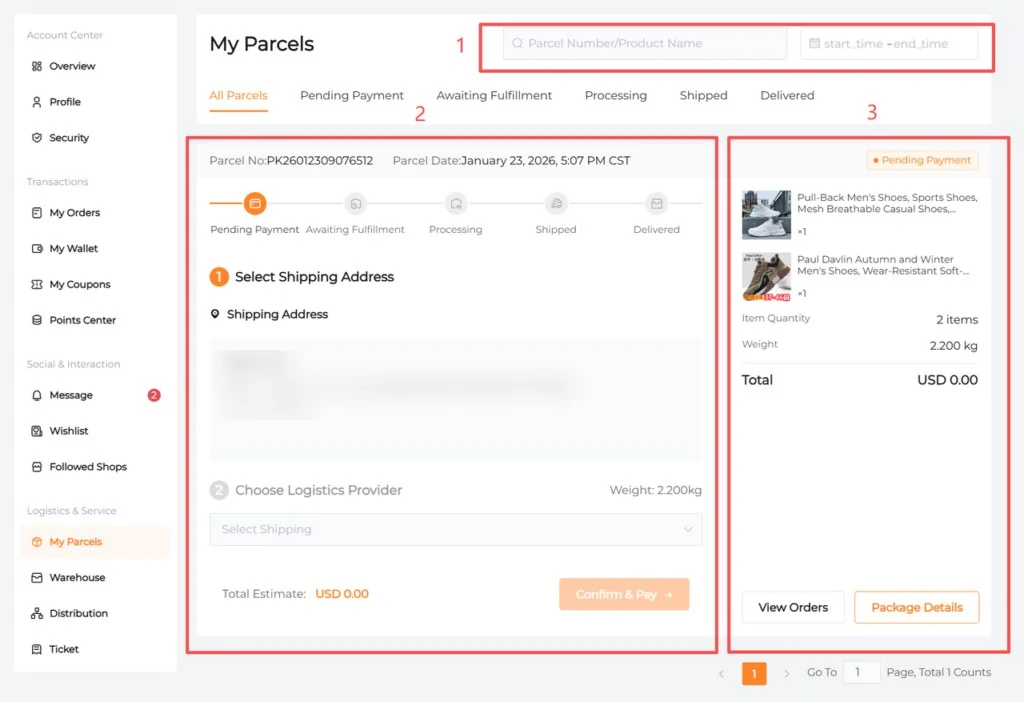
Grouping In Stock items into one outbound box
In My Parcels, group the items you want in one shipment, or split out anything restricted or fragile. Consolidation is free. Check the weight and size preview: if a boxed item pushes the parcel into size-based billing, ask for repacking before you pay. The parcel page covers divisors and repacking.
Stage 6 · shared track
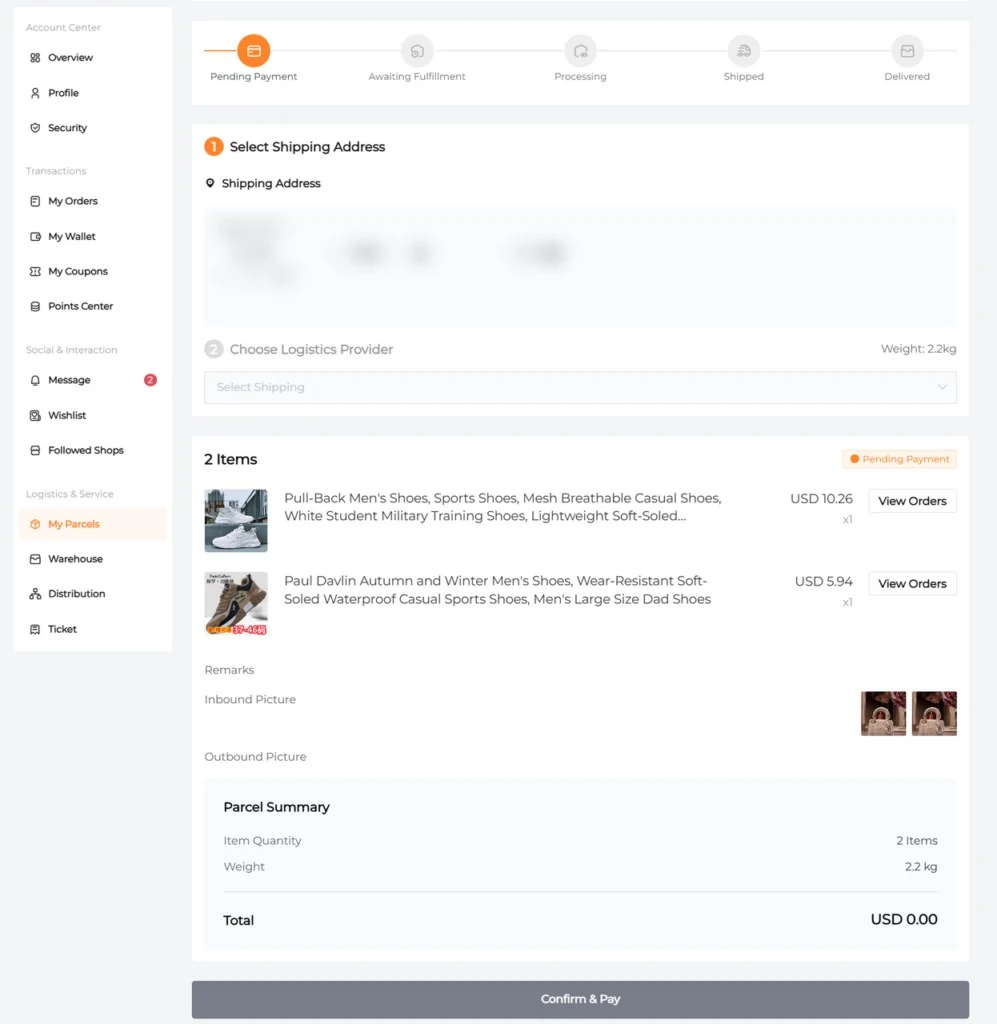
Picking a carrier line, then checkout two
With the parcel weighed, choose a logistics provider from the eligible list, confirm the delivery address and pay. Compare lines on transit time and goods type, not only price; the freight page shows what the official calculator returned for ten countries. Duties are not included and are paid by the recipient.
Stage 7 · shared track
Delivery, then the after-sales clock
Check the box before signing where you can, report visible damage within three business days with photos including the label, and confirm receipt in My Orders. After-sales requests follow the 45-day frame explained on the doorstep page, and reviews typically take three to five business days.